Label

Rabu, 13 April 2011

Papatah Kolot Baheula

Paribasa atau pepatah yang sudah diinformasikan secara lisan turun temurun dari para leluhur (karuhun) untuk bekal menjalani kehidupan.
A.    Hubungan Dengan Sesama Mahluk
    1. Ngeduk cikur kedah mihatur nyokel jahe kedah micarek (Trust – nggak boleh korupsi, maling, nilep, dlsb… kalo mo ngambil sesuatu harus seijin yg punya).
    2. Sacangreud pageuh sagolek pangkek (Commitment, menepati janji & consitent).
    3. Ulah lunca linci luncat mulang udar tina tali gadang, omat ulah lali tina purwadaksina (integrity harus mengikuti etika yang ada)
    4. Nyaur kudu diukur nyabda kudu di unggang (communication skill, berbicara harus tepat, jelas, bermakna.. tidak asbun).
    5. Kudu hade gogod hade tagog (Appearance harus dijaga agar punya performance yg oke dan harus consistent dengan perilakunya –> John Robert Power melakukan training ini mereka punya Personality Training, dlsb).
    6. Kudu silih asih, silih asah jeung silih asuh (harus saling mencintai, memberi nasihat dan mengayomi).
    7. Pondok jodo panjang baraya (siapapun walopun jodo kita tetap persaudaraan harus tetap dijaga)
    8. Ulah ngaliarkeun taleus ateul (jangan menyebarkan isu hoax, memfitnah, dlsb).
    9. Bengkung ngariung bongok ngaronyok (team works & solidarity dalam hal menghadapi kesulitan/ problems/ masalah harus di solve bersama).
    10. Bobot pangayun timbang taraju (Logic, semua yang dilakukan harus penuh pertimbangan fairness, logic, common sense, dlsb)
    11. Lain palid ku cikiih lain datang ku cileuncang (Vision, Mission, Goal, Directions, dlsb… kudu ada tujuan yg jelas sebelum melangkah).
    12. Kudu nepi memeh indit (Planning & Simulation… harus tiba sebelum berangkat, make sure semuanya di prepare dulu).
    13. Taraje nangeuh dulang pinande (setiap tugas harus dilaksanakan dengan baik dan benar).
    14. Ulah pagiri- giri calik, pagirang- girang tampian (jangan berebut kekuasaan).
    15. Ulah ngukur baju sasereg awak (Objektivitas, jangan melihat dari hanya kaca mata sendiri).
    16. Ulah nyaliksik ku buuk leutik (jangan memperalat yang lemah/ rakyat jelata)
    17. Ulah keok memeh dipacok (Ksatria, jangan mundur sebelum berupaya keras).
    18. Kudu bisa kabulu kabale (Gawul, kemana aja bisa menyesuaikan diri).
    19. Mun teu ngopek moal nyapek, mun teu ngakal moal ngakeul, mun teu ngarah moal ngarih (Research & Development, Ngulik, Ngoprek, segalanya harus pakai akal dan harus terus di ulik, di teliti, kalo sudah diteliti dan dijadikan sesuatu yang bermanfaat untuk kehidupan).
    20. Cai karacak ninggang batu laun laun jadi dekok (Persistent, keukeuh, semangat pantang mundur).
    21. Neangan luang tipapada urang (Belajar mencari pengetahuan dari pengalaman orang lain).
    22. Nu lain kudu dilainkeun nu enya kudu dienyakeun (speak the truth nothing but the truth).
    23. Kudu paheuyeuk- heuyeuk leungeun paantay-antay tangan (saling bekerjasama membangun kemitraan yang kuat).
    24. Ulah taluk pedah jauh tong hoream pedah anggang jauh kudu dijugjug anggang kudu diteang (maju terus pantang mundur).
    25. Ka cai jadi saleuwi kadarat jadi salogak (Kompak/ team work).
    26. dlsb.

    B.     Hubungan Dengan Tuhan (Yang Maha Kuasa)
    1. Mulih kajati mulang kaasal (semuanya berasal dari Yang Maha Kuasa yang maha murbeng alam, semua orang akan kembali keasalnya).
    2. Dihin pinasti anyar pinanggih (semua kejadian telah ditentukan oleh Yang Maha Kuasa yang selalu menjaga hukum-hukumnya).
    3. Melak cabe jadi cabe melak bonteng jadi bonteng, melak hade jadi hade melak goreng jadi goreng (Hukum Yang Maha Kuasa adalah selalu menjaga hukum-2nya, apa yang ditanam itulah yang dituai, kalau kita menanam kebaikan walaupun sekecil elektron tetep akan dibalas kebaikan pula, kalau kita menanam keburukan maka keburukan pula yg didapat…. kira-2 apa yang sudah kita tanam selama ini sampai-2 Indonesia nyungseb seeeeeb  )? )
    4. Manuk hiber ku jangjangna jalma hirup ku akalna (Gunakan akal dalam melangkah, buat apa Yang Maha Kuasa menciptakan akal kalau tidak digunakan sebagai mestinya).
    5. Nimu luang tina burang (semua kejadian pasti ada hikmah/ manfaatnya apabila kita bisa menyikapinya dengan cara yang positive).
    6. Omat urang kudu bisa ngaji diri (kita harus bisa mengkaji diri sendiri jangan suka menyalahkan orang lain)
    7. Urang kudu jadi ajug ulah jadi lilin (Jangan sampai kita terbakar oleh ucapan kita, misalnya kita memberikan nasihat yagn baik kepada orang lain tapi dalam kenyataan sehari- hari kita terbakar oleh nasihat-2 yang kita berikan kepada yang lain tsb, seperti layaknya lilin yang memberikan penerangan tapi ikut terbakar abis bersama api yang dihasilkan).
    8. dlsb.

    C.     Hubungan Dengan Alam
    1. Gunung teu meunang di lebur, sagara teu meunang di ruksak, buyut teu meunang di rempak (Sustainable Development ~ Gunung tidak boleh dihancurkan, laut tidak boleh dirusak dan sejarah tidak boleh dilupakan… harus serasi dengan alam.).
    2. Tatangkalan dileuweung teh kudu di pupusti (Pepohonan di hutan ituh harus di hormati, harus dibedakan istilah dipupusti (dihormati) dengan dipigusti (di Tuhankan) banyak yang salah arti disini).
    3. Leuweung ruksak, cai beak, manusa balangsak (hutan harus dijaga, sumber air harus dimaintain kalo tidak maka manusia akan sengsara).
    4. dlsb.

    Selasa, 12 April 2011

    Beluk

    Kesenian beluk  banyak terdapat di daerah pegunungan Kabupaten Bandung dan daerah kabupaten lainnya yang artinya sora dieluk-eluk. Seorang pemain beluk harus kuat dalam memainkan suara keras panjang. Beluk dapat juga disebut macapat/ membaca cepat-cepat/ maca bari ngajepat (membaca sambil terlentang). Nenek moyang kita menyimbolkan badan manusia terdiri 4 zat air, api, angin, tanah yang kesemuanya pemberian Tuhan yang harus dipelihara.
    Macapat biasanya dipergunakan dalam acara 40 hari bayi lahir dengan mengadakan syukuran kepada Tuhan YME dan diselenggarakan malam hari. Beluk diambil dari pupuh yang 17 diantaranya: kinanti, sinom, asmarandana, dangdanggula ksad, ceritanya bersumber pada naskah wawacan yaitu : wawacan ogin,wawacan ahmad muhamad, ali muhtar, angling darama, arjuna sastrabahu, damar wulan, danu maya, dewa ruci, ekalaya, gandamanah, rangga pulung, panji wulung, sangkuriang, sulanjana, surya ningrat, udayana walang sangsang, dll.
    Di Kabupaten Bandung yaitu daerah Cileutik, seorang Banjaran seorang tokoh seni yaitu Mama Sukma yang melestarikan buhun di antaranya kesenian beluk, kesenian angklung, calung, reog, gondang, ketuk tilu, karena Mama Sukma sudah meninggal dunia sekarang sudah tidak ada lagi generasi penerus nya.
    Pertunjukan beluk dilakukan oleh 4 orang atau lebih, satu orang bertugas sebagai pembaca kalimat-kalimat dari wawacan, kemudian juru ilo yang menyanyikan dari bacaan tersebut dengan lagu pupuh 17 (KSAD) satu persatu. Kostum biasanya memakai baju kampret atau takwa, sarung/ celana panjang, kopeah/ iket, karena naskah wawacan panjang biasanya membawa buku/ naskah wawacan. Yang menarik dari pertunjukan beluk adalah di mana para juru ilo menyajikan dengan suara yang keras dan panjang, sehingga menambah suasana yang khas pedesaan yang penuh dengan keakraban dan harmoni dengan lingkungan alam nya. Beluk adalah salah  satu jenis kesenian rakyat yang tumbuh di Kabupaten Bandung yang sampai saat ini masih ada beberapa gelintir orang yang peduli terhadap keberadaan kesenian beluk.


    sumber

    Minggu, 03 April 2011

    Hormati Penderita Autis

    Terkadang kita dengan mudahnya ngomong autis pada orang yang terkadang kelakukan nyeleneh, bikin kesel, dll, seperti: "dasar autis", "biasa tuh si autis", dll tanpa kita mengetahui arti sebenarnya dari autis sendiri.

    Menurut Wikipedia, autisme adalah suatu kondisi mengenai seseorang sejak lahir ataupun saat masa balita, yang membuat dirinya tidak dapat membentuk hubungan sosial atau komunikasi yang normal. Akibatnya anak tersebut terisolasi dari manusia lain dan masuk dalam dunia repetitive, aktivitas dan minat yang obsesif. (Baron-Cohen, 1993). Menurut Power (1989) karakteristik anak dengan autisme adalah adanya 6 gangguan dalam bidang:
    • interaksi sosial,
    • komunikasi (bahasa dan bicara),
    • perilaku-emosi,
    • pola bermain,
    • gangguan sensorik dan motorik
    • perkembangan terlambat atau tidak normal.
    Gejala ini mulai tampak sejak lahir atau saat masih kecil; biasanya sebelum anak berusia 3 tahun.

    Oleh karenanya, janganlah kita dengan enteng mengejek teman kita dengan kata 'autis', karena jika ada orang tua yang memiliki anak penderita autisme mendengar kata tersebut untuk sebuah ejekan, hati mereka 'hancur' dan sangat sedih, dan jelas-jelas menyamakan kata autis dengan kata umpatan.


    Hari peduli autis sedunia diperingati setiap tanggal 2 april, walau pun telat 1 hari (sekarang tanggal 3 april) tapi yang penting kita selalu menghormati setiap penderita autisme dan tidak mengasingkan mereka.

    Hatur nuhun

    Senin, 07 Maret 2011

    Sejarah Singkat

    Mungkin tulisan ini bisa dianggap telat, karena biasanya sejarah singkat merupakan tulisan saat  blog pertama dibuat. Namun, tidak ada salahnya jika kami menulis sejarah singkat ini setelah mem-posting beberapa artikel supaya makin banyak orang yang mengetahui tentang BLAHBLOH...


    Blahbloh berasal dari bahasa Sunda (mun teu salah ieu ge, sugan we bener/ klo ga salah, moga aja bener), merupakan slang atau bahasa pergaulan yang sering digunakan di kalangan kami ketika ada diantara kami berada di 'bawah' kondisi orang lain seperti, (yang kebanyakan mengarah kepada) ketololan, kebodohan, kepintaran dari sifat bodoh kami, hidup yang serasa nge-fly a.k.a. tanpa beban ngejalanin hidup adanya apa dan sebebas kemauan sendiri, serta kejeniusan-kejeniusan yang tersembunyi, dll yang berkaitan dengan hal-hal diatas.

    Terkadang blahbloh membawa berkah tersendiri bagi kami yang hidup blahbloh seperti menjadikan hidup lebih senang dan bahagia, contohnya ketika kami bersama-sama melihat orang lain sibuk dengan tugasnya, kami dengan santai menyebut mereka dengan: "ah BLAHBLOH !!! hanya tugas, ko ribet amat...." seraya kami semua tertawa (tidak menyadari kondisi sendiri yang lebih blahbloh)

    hahahaha makin nyapruk a.k.a. ngelantur aja nih tulisan..... mungkin karena dampak dari blahbloh tadi....

    Akhir kata, saya ucapkan hatur nuhun - terima kasih - thank you - grazie - gracias - dank u
    Atas perhatian saudara-saudara karena membaca tulisan yang tidak karuan dan tidak enak dibaca ini
    Dan meniru gaya demian sang ilusionis

    SAATNYA SAYA KATAKAN, BLAHBLOH !!!


    nantikan cerita lainnya dari kami....
    bersambung.......

    Photoshop Text Effects: Worn And Torn Text

    In this Photoshop text effects tutorial, we're going to learn how to create a "worn and torn" effect with our text.
    Here's the effect we're going for:

    Adobe Photoshop Text Effects: The final effect

    Let's get started.

    Step 1: Open A New Photoshop Document 
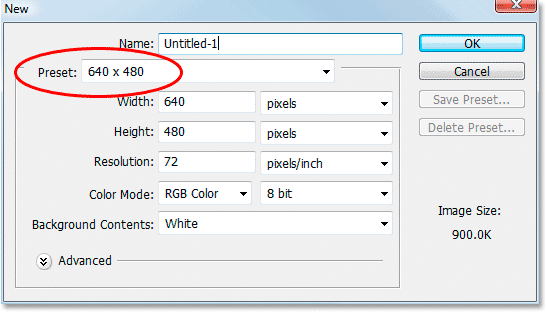
    I'm going to start by going up to the File Menu at the top of screen and choosing New... to create a new Photoshop document. I'll choose a preset size of 640x480, and then I'll click OK to have Photoshop create my new document for me:
    Adobe Photoshop Text Effects: Creating a new document in Photoshop 
    Adobe Photoshop Text Effects: Create a new Photoshop document using the preset size of 640x480. You can use whichever size you like.  
    Step 2: Fill The Background Layer With Black 
    Press D on your keyboard to quickly set black as your foreground color. Then use the keyboard shortcut Alt+Backspace (Win) / Option+Delete (Mac) to fill the Background layer with black:
    Adobe Photoshop Text Effects: Fill the Background layer with black  
    Adobe Photoshop Text Effects: Press "Alt+Backspace" (Win) / "Option+Delete" (Mac) to fill the background with black.  
    Step 3: Set Your Foreground Color To White And Add Your Text 
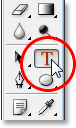
    Press X on your keyboard this time to swap your Foreground and Background colors, so white becomes your Foreground color. Then grab your Type tool from the Tools palette or by pressing T on your keyboard:
    Adobe Photoshop Text Effects: Selecting the Type tool from the Tools palette. 
    Adobe Photoshop Text Effects: Select the Type tool from the Tools palette or by pressing "T" on your keyboard. 

    Then with the Type tool selected, choose your font up in the Options Bar at the top of the screen and add your text. I'm going to use "Impact" for my font, and I'll type the word "FEAR". Then I'll press Ctrl+T (Win) / Command+T (Mac) to bring up Photoshop's Free Transform box and handles around my text and while holding down Shift+Alt (Win) / Shift+Option (Mac), I'll drag out a corner handle to resize my text and make it larger. Holding Shift constrains the proportions of the text as I drag, and holding Alt/Option forces the text to resize from the center. Here's my text after resizing it:
    Adobe Photoshop Text Effects: Typing the word 'FEAR' into the Photoshop Document. 
    Adobe Photoshop Text Effects: Add your text, then resize it if needed with the Free Transform command.
    Step 4: Rasterize The Text 
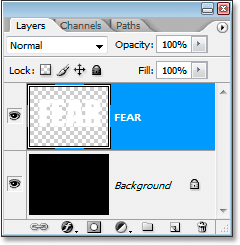
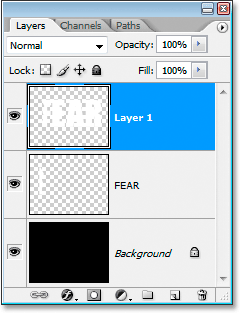
    We need to convert the text into pixels at this point, so once you're happy with your text, go up to the Layer menu at the top of the screen, choose Rasterize, and then choose Type. Your text won't look any different in the Document Window, but if you look at your Type layer in the Layers palette, you'll see that it has now become a normal layer:
    Adobe Photoshop Text Effects: Photoshop's Layers palette now showing the text as a normal layer after rasterizing it. 
    Adobe Photoshop Text Effects: After rasterizing the text, it becomes a normal layer in the Layers palette.
    Step 5: Make A Jagged Selection Through The First Letter, Then Select The Rest Of The Word 
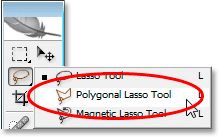
    Grab your Polygonal Lasso tool from the Tools palette. It's hiding behind the Lasso tool, so just click and hold your mouse down on the Lasso tool icon and then select the Polygonal Lasso tool from the fly-out menu that appears:
    Adobe Photoshop Text Effects: Selecting the Polygonal Lasso tool from the Tools palette. 
    Adobe Photoshop Text Effects: Select the Polygonal Lasso tool from the Tools palette.
      
    Then, with the Polygonal Lasso tool selected, make a jagged selection through the first letter from top to bottom. Notice I didn't say drag a selection, and that's because you don't drag with the Polygonal Lasso tool. All you do is click inside the document once with your mouse, then release the mouse button and move your mouse to create a line. Click again, move the mouse again. Click, move, click, move, and so on. Make sure you create a jagged line through the letter, not a straight line, since this is going to be our first tear point.
    Once you have your jagged line through the letter, finish your selection by clicking and moving your mouse around the rest of the word to the right of your selection line, so you end up with the entire word selected except for the left part of the first letter, as I have here:

    Adobe Photoshop Text Effects: Make a jagged selection through the first letter, then include the rest of the word in the selection. 
    Adobe Photoshop Text Effects: Make a jagged selection through the first letter from top to bottom, then include the rest of the word that's to the right of your jagged line in the selection.
    Step 6: Cut The Selection Onto A New Layer 
    When you're happy with your selection, press Ctrl+Shift+J (Win) / Command+Shift+J (Mac) to cut the selection onto a new layer. You won't see much happen yet in your Document Window, but in your Layers palette, you'll see that your selection is now on a new layer, and the only part of the word remaining on the original text layer below it is the left part of the first letter which wasn't selected:
    Adobe Photoshop Text Effects: Cutting the selection onto a new layer. 
    Adobe Photoshop Text Effects: Press "Ctrl+Shift+J" (Win) / "Command+Shift+J" (Mac) to cut the selection onto a new layer.
    Step 7: Rotate The Letters Using The Free Transform Command 
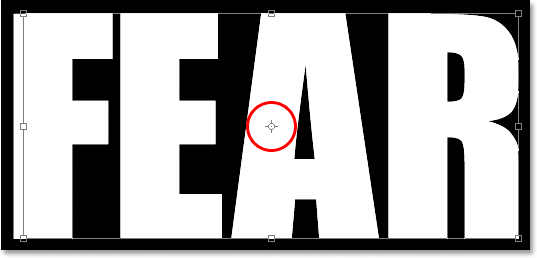
    We're going to create our first tear in the text. With the new layer selected in the Layers palette, press Ctrl+T (Win) / Command+T (Mac) to bring up the Free Transform box and handles around the letters (minus the left half of the first letter, which is on the layer below). Look in the center of the Free Transform box and you'll see a small target icon:
    Adobe Photoshop Text Effects: The target icon in the center of the Free Transform box.
    Adobe Photoshop Text Effects: The target icon in the center of the Free Transform box.
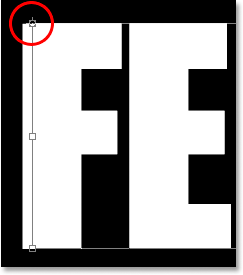
    We're going to rotate the text a little to create the tear, and this target icon represents the spot where everything is going to rotate around. We don't want the letters to rotate around the center. We want them to rotate from the top left corner, so to fix that, simply click on the target icon with your mouse and drag it up to the top left corner. It will snap into place as you approach the corner:
    Adobe Photoshop Text Effects: Dragging the target icon into the top left corner of the Free Transform box. 
    Adobe Photoshop Text Effects: Click and drag the target icon into the top left corner of the Free Transform box.
      
    Once you've dragged the target icon to its new location, simply move your mouse anywhere outside of the Free Transform box, then click and drag your mouse up or to the left to rotate the letters counterclockwise, creating a tear through the first letter as I'm doing here:
    Adobe Photoshop Text Effects: Click and drag outside of the Free Transform box to rotate the letters. 
    Adobe Photoshop Text Effects: Rotate the letters by clicking and dragging your mouse outside of the Free Transform box.
      
    Press Enter or Return when you're happy with the tear you've created to accept the transformation. Here's my text so far with a nice big tear through the letter "F":
    Adobe Photoshop Text Effects: The text showing the tear through the first letter. 
    Adobe Photoshop Text Effects: The letter "F" now has a large tear through it.
      
    We're going to do the same thing with the rest of the letters next.
     
    Step 8: Make A Jagged Selection Through The Second Letter, Then Select The Rest Of The Word 
    With the Polygonal Lasso tool still selected, make another jagged selection, this time through the second letter, then include the rest of the word to the right of the jagged line in your selection:
    Adobe Photoshop Text Effects: Making a jagged selection through the second letter. 
    Adobe Photoshop Text Effects: Make a jagged selection through the second letter, then include the rest of the word to the right of the jagged line in the selection.  
    Step 9: Cut The Selection Onto A New Layer 
    With your selection created, press Ctrl+Shift+J (Win) / Command+Shift+J (Mac) to cut the selection onto a new layer:
    Adobe Photoshop Text Effects: Cutting the second selection onto a new layer. 
    Adobe Photoshop Text Effects: Press "Ctrl+Shift+J" (Win) / "Command+Shift+J" (Mac) to once again cut the selection onto a new layer.  
    Step 10: Rotate The Letters Using The Free Transform Command 
    We're going to rotate the contents on the new layer once again, so press Ctrl+T (Win) / Command+T (Mac) to bring up the Free Transform box and handles. This time, drag the center target icon down into the bottom left corner so we can rotate the letters from the bottom left:
    Adobe Photoshop Text Effects: Dragging the Free Transform center target icon into the bottom left corner. 
    Adobe Photoshop Text Effects: Click and drag the target icon into the bottom left corner.
      
    Then move your mouse anywhere outside of the Free Transform box and click and drag either down or to the right to rotate the letters clockwise, creating a tear through the second letter:
    Adobe Photoshop Text Effects: Rotating the contents clockwise to create a tear through the second letter. 
    Adobe Photoshop Text Effects: Rotate the letters clockwise this time to create a tear through the second letter.
      
    Press Enter (Win) / Return (Mac) to accept the transformation. Here's my text after tearing the second letter:
    Adobe Photoshop Text Effects: The second letter now has a tear through it. 
    Adobe Photoshop Text Effects: The text now has tears through the first and second letters.
      
    Step 11: Repeat The Process For The Rest Of The Letters 
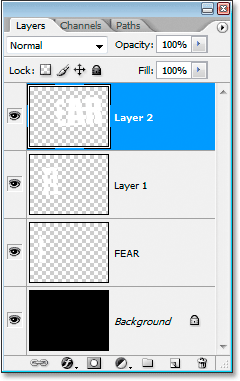
    Repeat the same steps for the remaining letters. First make a jagged selection through the letter with the Polygonal Lasso tool, then include the rest of the word to the right of the jagged line in the selection. Press Ctrl+Shift+J (Win) / Command+Shift+J (Mac) to cut the selection onto a new layer. Then press Ctrl+T (Win) / Command+T (Mac) to bring up the Free Transform box and handles. Drag the center target icon into either the top left or bottom left corner to rotate from that spot, then click and drag anywhere outside of the Free Transform box to rotate the layer contents.Here's my word "FEAR" after creating my tears through the remaining two letters. I rotated the "A" from the top left and the "R" from the bottom left:
    Adobe Photoshop Text Effects: The text after tearing all four letters. 
    Adobe Photoshop Text Effects: The text after creating tears in all four letters.
    Step 12: Merge All Text Layers Into One 
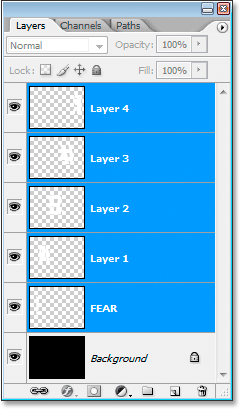
    Select all of your text layers in the Layers palette, first by clicking on the top layer to select it and then Shift-clicking on the original text layer directly above the Background layer. This will select all your text layers at once:
    Adobe Photoshop Text Effects: Selecting all the text layers in the Layers palette. 
    Adobe Photoshop Text Effects: Click on the top layer, then Shift-click on the original text layer above the Background layer to select all text layers at once.
      
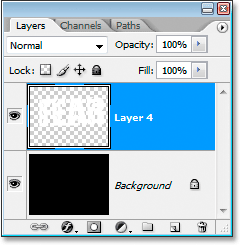
    With all of your text layers selected, press Ctrl+E (Win) / Command+E (Mac) to merge them all onto one layer. You should now have only two layers in the Layers palette:
    Adobe Photoshop Text Effects: Merging all the text layers onto a single layer. 
    Adobe Photoshop Text Effects: Press "Ctrl+E" (Win) / "Command+E" (Mac) to merge all text layers onto a single layer.  
    Step 13: Add A Layer Mask To The New Merged Layer 
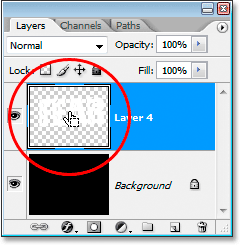
    We're going to add a layer mask to the new merged layer, but before we do, hold down your Ctrl (Win) / Command key and click directly on the merged layer's thumbnail in the Layers palette to quickly select the text in the Document Window:
    Adobe Photoshop Text Effects: Hold down 'Ctrl' (Win) / 'Command' (Mac) and click on the merged layer's thumbnail. 
    Adobe Photoshop Text Effects: Select all of your text by holding down "Ctrl" (Win) / "Command" (Mac) and clicking on the merged layer's thumbnail in the Layers palette.
      
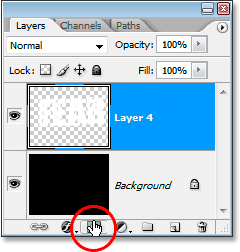
    You'll see a selection appear around your text. With your text now selected, click on the Add A Layer Mask icon at the bottom of the Layers palette:
    Adobe Photoshop Text Effects: Clicking the 'Add Layer Mask' icon at the bottom of the Layers palette. 
    Adobe Photoshop Text Effects: With the text selected, click the "Add A Layer Mask" icon to add a layer mask to the merged text layer.
      
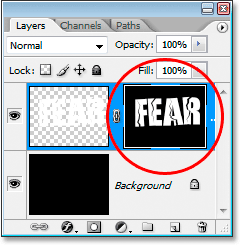
    You'll see the layer mask appear to the right of the merged text layer's thumbnail in the Layers palette, with your text appearing in white and all of the empty area around it appearing in black:
    Adobe Photoshop Text Effects: The Layers palette showing the layer mask to the right of the merged layer's thumbnail. 
    Adobe Photoshop Text Effects: The layer mask appears to the right of the merged layer's thumbnail.
    Step 14: Apply The "Spatter" Filter To The Layer Mask 
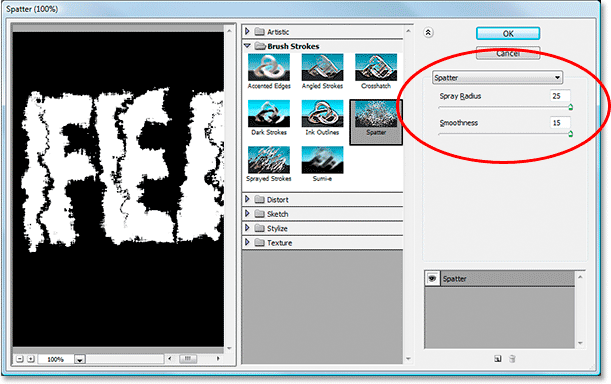
    We're going to give our text a nice worn look to it at this point using the "Spatter" filter. To do that, with the layer mask selected, go up to the Filter menu at the top of the screen, choose Brush Strokes, and then choose Spatter, which brings up Photoshop's massive Filter Gallery set to the Spatter options (circled in red on the right):
    Adobe Photoshop Text Effects: Photoshop's Filter Gallery set to the Spatter filter options. 
    Adobe Photoshop Text Effects: Go to Filter > Brush Strokes > Spatter to bring up the Filter Gallery set to the Spatter options.
      
    There's only two options for the Spatter filter, Spray Radius and Smoothness. Feel free to play around with both sliders to see which settings work best for your text, which you can view in the large preview window on the left of the Filter Gallery. I've just gone and dragged both slider bars all the way to the right to set both options to their maximum values of 25 for the Spatter Radius and 15 for the Smoothness, which gives me the effect I'm looking for:
    Adobe Photoshop Text Effects: The text after applying the Spatter filter. 
    Adobe Photoshop Text Effects: The text after applying the "Spatter" filter.
      
    Step 15: Apply A Stroke To The Text To Complete The Effect 
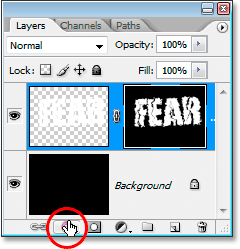
    To finish things off, I'm going to add a stroke to my text. With my text layer selected, I'm going to click on the Layer Styles icon at the bottom of the Layers palette:
    Adobe Photoshop Text Effects: Clicking the Layer Styles icon at the bottom of the Layers palette. 
    Adobe Photoshop Text Effects: Click the Layer Styles icon at the bottom of the Layers palette.
      
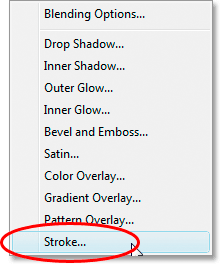
    Then I'll select Stroke from the list that appears:
    Adobe Photoshop Text Effects: Selecting 'Stroke' from the list of Layer Styles. 
    Adobe Photoshop Text Effects: Select "Stroke" from the list of Layer Styles.
      
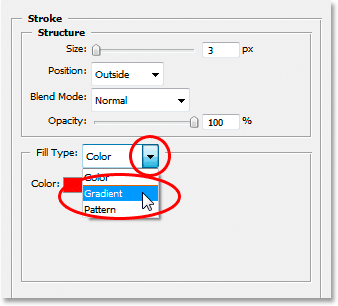
    This brings up the Layer Style dialog box set to the Stroke options in the middle column. By default, Photoshop uses a solid color for the stroke, but I'm going to use a gradient instead. To change it, click on the down-pointing arrow to the right of the Fill Type option, then select Gradient from the list:
    Adobe Photoshop Text Effects: Change the stroke's fill type from 'Color' to 'Gradient'. 
    Adobe Photoshop Text Effects: Change the stroke's "Fill Type" from "Color" to "Gradient".
      
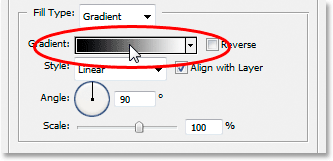
    The Fill Type options will then change to options for the gradient. Click on the gradient preview area to bring up Photoshop's Gradient Editor to choose new colors for the gradient:
    Adobe Photoshop Text Effects: The Fill Type options change to options for the gradient. 
    Adobe Photoshop Text Effects: Click on the gradient preview area to bring up the Gradient Editor.
      
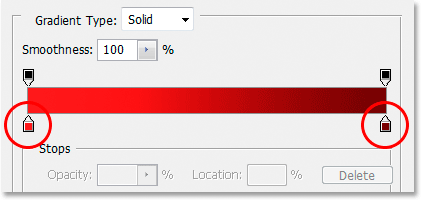
    When the Gradient Editor appears, double-click on the black color marker on the bottom left of the gradient preview bar in the middle of the Gradient Editor, which will bring up the Color Picker, and choose a bright red color. Click OK to exit out of the Color Picker, then double-click on the white color marker on the bottom right of the gradient preview bar. The Color Picker will re-appear. Choose a dark red color this time, then click OK to once again exit out of the Color Picker. Here's my colors below:
    Adobe Photoshop Text Effects: Choosing new colors for the stroke gradient in the Gradient Editor. 
    Adobe Photoshop Text Effects: Choose a bright red for the color on the left of the gradient and and a dark red for the color on the right.
      
    Click OK to exit out of the Gradient Editor, then click OK to exit out of the Layer Style dialog box to apply the stroke to the text (no need to make any other changes to the Stroke options), and you're done!
    Here, with my gradient stroke applied, is my final "worn and torn" text effect:
    Adobe Photoshop Text Effects: The final text effect result. 
    Adobe Photoshop Text Effects: The final text effect result.
      
    And there we have it!


    hasil kreasi blahbloh


    (jika kreasinya sangat jauh dari kata jelek, mohon dimaklumi karena kami masih amatir dan terutama blahbloh....)


    Awas! Parfum Bisa Rusak Sperma

    TRIBUNNEWS.COM - Pria nampaknya kini harus berhati-hati dan lebih selektif dalam menggunakan pewangi tubuh seperti cologne. Sebuah penelitian menunjukkan cologne bisa merusak sperma.

    Penelitian yang dilakukan oleh Environmental Working Group Amerika Serikat menyebutkan bahwa bahan-bahan rahasia dibalik aroma khusus sebuah cologne bisa merusak sperma.

    Peneliti menganalisis komposisi kimia dari 17 parfum dan cologne. Hasilnya menunjukkan kalau produk beraroma banyak mengandung senyawa yang berpotensi bisa berinteraksi dengan hormon.

    Satu bahan kimia yang sebelumnya juga ditemukan dalam penelitian Harvard 2006 disebut sebagai pthalate pelarut dietil terkait dengan kerusakan sperma dan terdapat pada 12 produk parfum atau cologne.

    DEP ditenggarai juga sebagai salah satu dari 12 senyawa pengganggu hormon yang ditemukan di cologne. Dua bahan sintetis DEP, galoxide dan tonalide yang menciptakan aroma dalam cologne dan bisa mengganggu astrogen atau androgen ini bahkan sudah ditemukan pada tali pusar bayi yang baru lahir.

    Ini menandakan bayi dalam rahim bisa terpapar bahan kimia meski digunakan dari luar tubuh.

    Georgio Armani misalnya, parfum ini mengandung tujuh senyawa yang berinteraksi dengan estrogen atau androgen, bahkan keduanya. American Eagle Outfitters memiliki 24 bahan yang tidak diungkapkan, diikuti oleh Coco Chanel dengan 18 bahan tidak terdaftar, Dolce dan Gabbana Light Blue hanya tujuh.

    Penulis studi ini, Dr Olga V. Naidenko mengatakan tidak tahu bagaimana bahaya penggunaan pada parfum tersebut karena penelitian ini bukan pengujian jangka panjang. Namun penggunaan yang jarang bisa menjadi baik karena bahan kimia yang terus menerus dapat memberikan efek buruk dari waktu ke waktu.

    "Karena itu setiap bahan yang tercantum pada label harus terlihat sehingga orang tahu apa yang terjadi pada atau dalam tubuhnya, langkah berikutnya adalah memastikan bahan yang digunakan telah diuji secara menyeluruh," imbuhnya.


    aya-aya wae euy.....
    parfum wae bisa ngarusak sperma, edun lah....
    pencegahan terbaik mah:
    1. tong make parfum
    2. mandi bersih make sabun nu seungit, jadi teu bau awak
    3. mun sering make parfum, kudu dahar cau atawa alpuket (cenah bisa ningkatkeun jumlah & kualitas sperma)

    hahaha....
    nyapruk we...

    Pria Kelahiran 1980 ke Atas Jumlah Spermanya Makin Sedikit

    img

    Turku, Finlandia, Produksi sel sperma para pria makin berkurang dari masa ke masa, diduga akibat peningkatan polusi yang mencemari makanan dan lingkungan. Dampaknya tidak hanya mengurangi kesuburan, tapi juga meningkatkan risiko kanker pada pria.

    Penelitian yang dilakukan para ahli dari University of Turku di Finlandia menunjukkan, jumlah sel sperma pria mulai berkurang sejak akhir dekade 1970-an. Hanya dalam 10 tahun, jumlah sperma rata-rata yang diproduksi para pria mengalami penurunan sekitar 30 persen.

    Penelitian yang dilakukan di Finlandia itu mencatat, jumlah sperma yang dihasilkan pria kelahiran tahun 1979-1981 masih sekitar 227 juta/ml. Pria kelahiran tahun 1982-1983 menghasilkan sperma 202 juta/ml, sementara yang lahir di atas tahun 1983 hanya menghasilkan 165 juta/ml.

    Meski hanya dilakukan di Finlandia, hasil penelitian ini diyakini bisa menjadi indikator kesuburan pria di seluruh dunia. Pasalnya selama ini pria Finlandia dianggap paling 'jantan' dari sisi kesuburan, karena produksi spermanya rata-rata lebih banyak dibanding pria lain di dunia.

    Selain mengamati produksi sperma yang makin sedikit, para peneliti juga melihat risiko kanker pada pria yang cenderung meningkat. Dibandingkan pada kelompok pria yang lahir di era 1950-an, kanker testis lebih banyak menyerang pria-pria yang lahir setelah tahun 1980-an.

    Para ahli menduga, kedua hal ini disebabkan oleh polusi yang mencemari makanan dan lingkungan. Pencemaran yang terus meningkat dari masa ke masa memicu gangguan pada pertumbuhan janin laki-laki ketika masih berada dalam kandungan, khususnya yang terkait dengan sistem reproduksi.

    "Berkurangnya produksi sperma dan meningkatnya risiko kanker testis terjadi bersamaan, sehingga diduga penyebabnya adalah pencemaran yang sebenarnya bisa dicegah," tulis Prof Jorma Toppari yang memimpin penelitian tersebut, seperti dikutip dari BBC, Senin (7/3/2011).

    Prof Toppari menyarankan untuk menindaklanjuti temuan dengan studi investigatif untuk mengidentifikasi polutan apa saja yang memicu perubahan tersebut. Kelak jika sudah dipastikan penyebabnya, produksi sperma bisa dijaga agar tidak terus berkurang pada generasi berikutnya.

    beu.... berarti kita-kita yang masih 'muda' produksi spermanya rendah karena pencemaran di makanan & pencemaran lingkungan???? SADIS.....